View video transcript
Introduction to Shot Scope MyStrategy
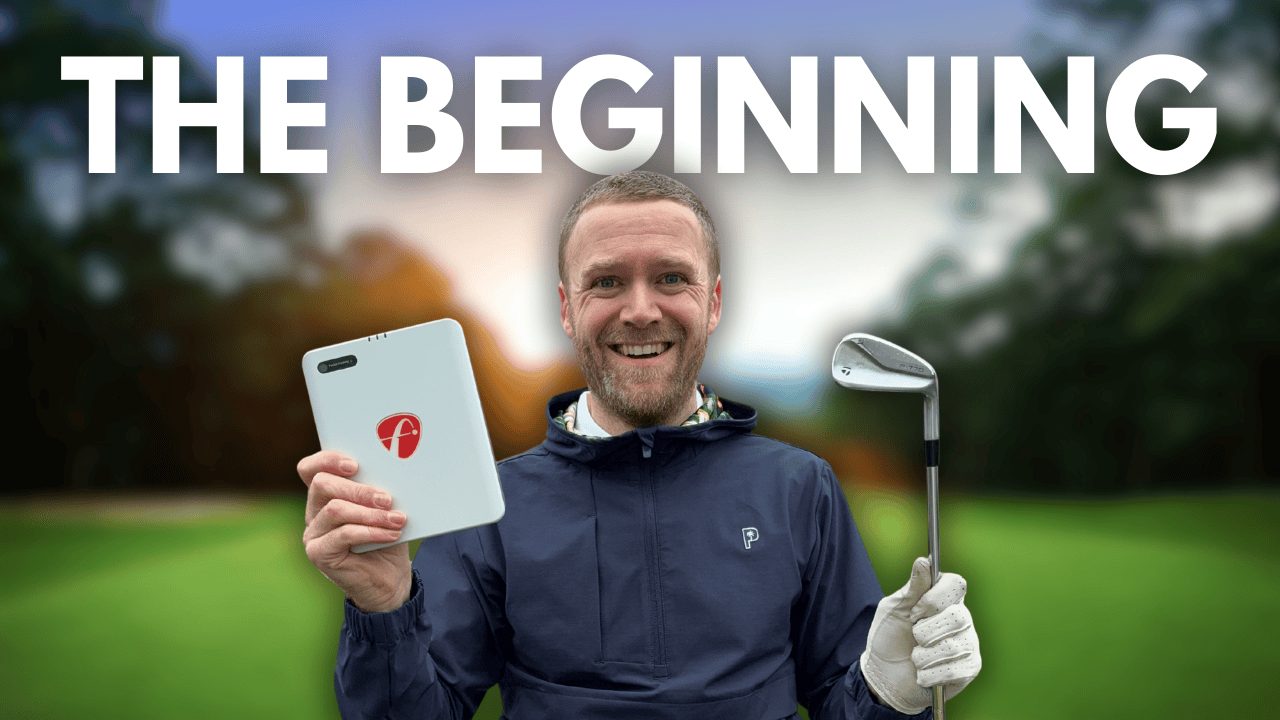
Shot Scope has today released a brand new feature for all users of Shot Scope products, and that is called MyStrategy. Now, I thought I’d make this quick video just taking an initial look at this new feature to see what it’s all about and share my initial thoughts and opinions on it. I’m going to create a full tutorial later on which will cover me actually using it to plot my way around ahead of a round that I’m going to be playing on a specific course. But in this video, I thought I would just take you on a quick tour of this new feature.
What is the MyStrategy Feature?
Now, in case you’re not aware of what it is, it basically allows users of Shot Scope products to log into the Shot Scope dashboard, either via the mobile app or via their web browser, like I’m in just now, and look at one of the 36,000 golf courses mapped on the Shot Scope database. And then basically plot your way around before you play that golf course using information based on how other golfers have played the course (if they are Shot Scope users) and how your general performance statistics can help you to play the round more effectively. You can also capture notes and things like that which you can then view on the golf course when you’re playing that course using the mobile app.
Selecting a Course and Tees
So, I’ve logged into the Shot Scope dashboard here. I’m just going to click on MyStrategy from the very top here, and then what you have to do is you have to find the golf course that you’re wanting to build a strategy for. Now, your other strategies will appear in here once you have created one, but I’m going to look in here for Gleneagles. And you’ll see there’s lots of Gleneagles courses across the world. Let’s just go for the one here in Scotland, which is the Gleneagles King’s Course. So, you then get a little preview map from Google Maps, which most people are used to with Shot Scope devices using. And you can choose your tees. So, I’m going to say we’re going to play from the White Tees. And then you’ll get taken to this page here. Now, you can read through this little tutorial they give you here, I’m just going to skip this by clicking close, and I’m going to jump right in and take a closer look.
Analyzing Hole Statistics and Benchmarks
So, the first thing is the left-hand side: statistics and notes. Statistics will show you how players have played this particular hole on the golf course. And what you can do is you can actually change the benchmark here, so you can look at how players who are maybe closer to your handicap have played the particular holes. So, you’ll see here, for example, on this hole here, the average score is a five on the first hole on the King’s Course. The rank is 12, so it’s the 12th hardest hole. You can see the average score from the users here, but then you can see basically what the average score is if users have missed left, hit the Fairway, or missed right. And interestingly, for this hole, based on all handicap groups, users who have missed right or missed left have actually had a lower average score, unbelievably, than a player who has hit the Fairway. But anyway, you can then see what the approach data is like. So, on average, all handicappers, the vast majority of them, are coming up short or finding the green, so very few players actually go long, which is a common thing in golf anyway. And then we can see the average putts per green in regulation down here. On the right-hand side, you can see the hole, you can see basically the par for the hole, and the distance. And there’s a couple of settings options up here, which we’re going to jump into in just a minute. First of all, let’s change the handicap benchmark to—I’m going to go for five. So, I play off seven, kind of like in the middle of 10 to five, let’s go for five. And we can see basically that the average score has dropped. Now this becomes the eighth hardest hole for five handicappers, and generally the players who have played this have hit 100% of the fairways. Now, of course, this is based on Shot Scope data for the users, so if not many people have actually played, there’s not going to be a huge amount of data in here.
Visualizing the Hole and Measuring Distances
But anyway, let’s jump in. So, first of all, it shows you the direction of the hole. So, this hole is the tee box. You can move this around if you need to, but it picks basically where the default tee should be. But for this particular hole at Gleneagles, the tee box is quite big, so let’s just move it to the back. Then we’re using the kind of the same method of navigating this map as we use for doing editing of our round. You can basically zoom in and out using the scroll wheel on your mouse, and you can click and drag when the hand appears to move around. So, this is basically saying that from here to this point on the fairway, it’s 187 yards. And then we can see from here to the pin in the center of the green is about 170. So, if you’ve never played this hole before, or even this course, using this is really useful because you can look straight away and see, “Okay, what is the shape of the course like? What is the shape of this hole like?” So, we know that we’re wanting to land somewhere around about here. There are a couple of bunkers to the right, there’s a couple of bushes and thick rough here, and then there are three on the left-hand side.
Club Selection and Performance Analysis
Now what we can do from here is we can click on this little “Add Club” button, and then we’re able to now have a look at our clubs. This is based on active clubs, but if you’ve got other clubs which aren’t currently active, you can toggle this off and see all of your clubs. But I’m going to go for active clubs, and at the moment it’s based on the data Shot Scope has about you, the user. But you’ll see soon, anybody, even if you’re not tracking performance data using a device—so you might just have the Shot Scope G5 for example—you’ll be able to actually input your own data into here, and then you’ll be able to select it. But I’m going to go for, for example, seven iron off of the tee. Right, so this is basically how far I hit my seven iron on average. Okay, so I average 160 yards with my seven iron, and you’ll see here basically this is telling me that that’s going to leave 196 yards from here. So, it’s quite a long second shot in, and it’s telling me the average from this position would be four strokes if I was to play my seven iron to here. So, instead what I’m going to do is I’m going to change this, and I’m going to say my average distance with my driver is 250, and the dispersion is 50 yards. So, I’m going to go for my driver, and now you’ll see that it’s saying that if I took my driver, I’m generally going to clear all of these bunkers if I hit it, based on my average. And then what I can do is I can move this around, so we could find a more specific area. And what this is helping me do is, if I’m on this tee, I can work out where to hit. So, I know that I could take the driver and hopefully find this narrow area, and then it’s only going to take on average 3.5 strokes from that second shot to finish out. I also can look at this and say, “Well, 25% of the players of the similar handicap have come up short,” so I may want to consider taking a longer or an extra club for this approach, which is 107 yards from here.
Utilizing Map Settings (Elevation and Dispersion)
The other thing that looks to be really good is you can go into settings and you can turn on elevation. Now, I’m not sure how elevation is actually calculated by Shot Scope, if I’m honest, based on these maps, but you’ll see it says “Plays Like 109 yards” when it’s actually 110. So, this one, from memory when I’ve played this course once, I think it is quite steep playing up to here. But anyway, it’s giving you that bit of information so you can work it out. This would be an interesting thing to check against my home course actually, to see roughly how accurate elevation changes are. The other thing that’s quite good is you can turn on dispersion tendency, and you’ll see it just adjusts it ever so slightly, so it knows roughly where you’re likely to go in terms of dispersion. And you can turn on shots plotted. And what this does, which I think is really cool, is it shows you where your shot is likely to go. So, with my driver, if I just zoom out, a lot of my drives tend to go to the right-hand side. We know that based on how we play golf, I know most of my shots are a little bit of a fade and come to the right-hand side. So, I know from the tee here I might want to aim a little bit further left, which increases the likelihood of these finding the fairway. If I just aim right down the middle, which is about there, some of these are potentially going to find this bunker or this rough. So, before even playing the course, I can move this around a little bit to the left. I might even come in here and say, “Let’s just change that to the three-wood.” And then you’ll see that I use my three-wood a lot more often, but in terms of dispersion, it’s pretty much the same as this. Could even drop down to my hybrid, but the dispersion there is narrower, but I don’t use that club very often, and it says there 3.9 to finish from here because my approach is then going to be 156 yards uphill. So, I’m going to go for my… let’s go for the driver.
Adding Notes and Mobile App Integration
Now what’s pretty cool here is you can actually take notes. So, if I go to this “Notes” tab, I can come in here, type a note, and I might say, “Use driver off of the tee,” and I’m going to say something like, “Aim on left tree behind bunkers.” So, you’ll see there there’s this big tree, so I’m going to say aim on that tree. We’re going to work a fade in hopefully to there. And then I can submit it. Now, you can capture three notes per hole. So, I might then want to look at what’s coming up next, and my next note might be something like, I don’t know, for second shot, “Take one club extra as no danger beyond green,” and then we can submit that one. So, the great thing is we’re going to be able to access these notes on the mobile version of the Shot Scope app. And I’ll bring it up on screen just now to show you how that looks. So, if you were at the golf course, you would be able to open up this notes panel when you’re playing the hole, and not only will you get the overview, but you’ll be able to see the notes that you’ve taken from your prior work before playing that round.
Incorporating Wind Conditions
At this point as well, you’ll see there is also a weather option here. So, you can go into here, and you can add wind conditions, and then you can set a value in here for your wind. So, I’m going to say that there’s going to be a southerly wind of 10 mile an hour. And then you’ll see, if that wind is into our face, this dramatically changes. So, from here, based on the kind of general calculations for playing golf in the wind at 10 mile an hour, it thinks I’m going to come up quite a bit shorter here. So, then what I might want to do is actually take a note and just say, “If the wind is into face, take more club for the second shot,” that kind of thing. So, you can adjust this. If the wind is coming off of, let’s say, this side, then you’ll see it adjusts it slightly, but you obviously have to take into account if the wind’s coming across you and I’m hitting a fade, then that hopefully will help me. Obviously, if it’s coming from the right-hand side. So, lots you can do with the weather, and you can turn this off if you need to. So, we’ll just put that back off.
Developing Strategy for a Difficult Hole
And then also within settings, you’ll see that you can turn off the layers for distances, so these come up for the holes, and measure target. So far, I’m really, really impressed. Let’s hit save, and we’re now going to go to the next hole. So, you can jump here to different holes, and I’m going to go through and look at what, based on statistics, is the hardest hole. So, that’s this one here. So, again, from here, this one would be a good one to see what club would be best to use off of the tee. So, I’m going to go for “Add Club.” Let’s just start with the driver. So, you’ll see here with the driver, we are leaving 250 yards in—sorry, we’re hitting 250 yards to here, and we’re leaving about 200 yards. So, I might stand on that tee and think, “Well, I could probably take on this line and maybe cut the corner.” But then from this view, I can see that that’s not going to be something I can achieve, and the likelihood is I might find this area here. So, I could change this to something like a three-wood. And then if I just go into settings, I’m just going to turn some of these things off to make it a bit easier to see. Then based on my dispersion, I can move this and pick where would be best to land. So, the vast majority of my three-woods are going to cover these two bunkers and find the fairway if I make sure that the line I take is off of, and I’m going to look for something in the distance, or even from here, if I can see this right-hand bunker, I’m going to basically take the ball just, I would say, on the left of it to find this point here. And it could be that from here the driver is actually a more sensible play, because when we put these options back on, we can get a little bit closer to the green, because the three-wood versus my driver there is a difference of about 15 yards, which there’s going to be between hitting maybe a five iron and hitting my three hybrid in this situation. So, even from here, we can see some extra information about how others have played the course, because I don’t think many people of five handicap and below to zero have been playing this. I’m going to go for “All,” and then we can start getting an idea. So, again, this is one where a lot of people seem to be missing the green, in particular on this hole, probably because it’s quite a long approach; it may be 200 yards for most players, maybe even more. So, it shows taking an extra club. And again, with this view here, you can see behind the green there’s quite a lot of bare areas here, even the next tee, whereas all of the danger looks to be at the front or outright.
Conclusion and Other Shot Scope Products
So, that’s just a quick overview of this new feature from Shot Scope, the MyStrategy. I’m, as I said, going to film a separate video where I’m going to go through the full process of plotting my way around a course that I’m going to play. Hopefully, you find this video to be useful. If you aren’t a Shot Scope user already and you’re just happened to stumble upon this video out of chance, you can use my promo code Andy’s Golf at the Shot Scope website to get an extra 15% off all of their products. So, if you are looking to capture your statistics on the golf course, the Shot Scope X5 GPS and performance tracking golf watch might be useful for you. If you’re looking just for GPS information but you’re going to maybe make use of this as well, the Shot Scope G5, which is a little bit cheaper, could also be a good option. Shot Scope have the H4 handheld, which is a perfect option for anyone who doesn’t like wearing a watch but wants to capture their performance statistics and get those GPS yardages on the golf course. And if you’re somebody who prefers to use no devices but just use your phone, then the Shot Scope Connect tags, which are just around about £100, it might even be cheaper with my promo code, which I’ll put in the description below, those will allow you to connect to your mobile phone and make use of the maps on the phone and your phone to actually plot your way around the golf course and to capture your statistics. I’ve got plenty of other videos on this YouTube channel for Shot Scope products. There’s product reviews, there’s tutorial videos. So, if you are interested in finding out more about even how to edit your rounds using the Shot Scope dashboard or mobile apps, check out those videos. But hopefully, you have found this video to be useful, and let me know your comments below what you think about this new option from Shot Scope. Do you think this is something that you’ll make use of, and is there any features that are perhaps missing from here that you think Shot Scope should include?
I think this is a seriously cool offering from Shot Scope and I’m looking forward to using it to prepare for future rounds, especially on golf courses I’m not familiar with. I like the fact that Shot Scope is continuing its tradition of bringing more features and functionality to its users without enforcing a subscription. I for one can’t wait to see this tool continue to develop over time.
If you’re not familiar with the Shot Scope GPS, performance tracking and laser rangefinder range, head to the Shot Scope website using the button below and be sure to use my discount code ‘ANDYSGOLF‘ at checkout to save an EXTRA 15% on your order. You can also find several Shot Scope product videos, tutorials and reviews on this blog and over on my YouTube channel, so be sure to check those out too!